I love comments. If you like my work or download one of my files, please leave me a comment and let me know.

Thanks and happy crafting.

Monday, July 6, 2009

Scal Tutorial Part #5 Part 2

Combine Sections Together

This is where we left off after the last tutorial.
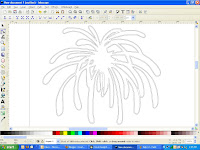


If you look near the bottom, you will notice several pieces that are separated that maybe shouldn't be. This is really all a matter of opinion. If you like it this way cut it out. It will look gorgeous. I'm a little OCD (no laughing!) and feel the need to fix these.

Step1: While in the node format, I have dragged the lines to overlap the piece next to it where I would like them to be connected.
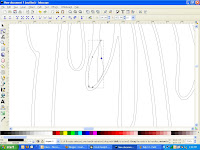


Step 2: Highlight both of these pieces. You do this by clicking on one, holding down the shift key while you click on the other.

Step 3: Click Path - union or control++
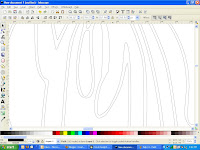


Look better? Now I'm going to do the same thing to the pieces above and to the left.
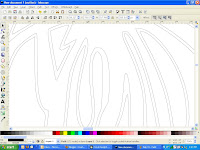


Now it's time to combine the sections together that I want cut out of the same color. Do you remember how to do that? Let's refresh:

While holding down on the sift key, click on all of the pieces you want cut out of the same color. After they are all highlighted, press control k. Now you can move them as one unit. Do this to all of your pieces and save! You are now ready to import into scal and cut away. Have fun.

Please feel free to ask any questions that you may have and please show me what you have made!

Scal Tutorial Part #5


Editing/Cleaning up Inkscape Files Part 1

Using Node Deletion and Line Dragging

Have you traced an image in inkscape but now it doesn't look right? It just needs a little editing.

Here is a file that I have imported into inkscape, traced and changed the view to outline.


As you can see the file has some extra lines that need cleaning up.

Step 1: Click on your image so you have the black box around it and click control+shift+k.
This should break apart your image so each piece has its own black box around it.

Step 2: Click on the extra line on the left and press delete. It should disappear.


Step 3: Zoom in on the extra line at the top and press the button on the left underneath the arrow button. This is the node button.


You can click on the top three nodes and delete them. I do this by using my arrow and drawing a box around the three nodes so that it highlights them all at the same time.


While they are highlighted, press delete. They should disappear and the line should be fixed.


Step 4: Do this for the extra line at the bottom and the big one in the middle as well. If you find that you have accidentally deleted a node that you need, go to edit - undo and try again.

Step 5: Just below the center of the firework, you will see two spiky areas.


The top spike is easy to fix. Simply highlight the extra nodes and delete them. The bottom spike is trickier. When you delete the extra nodes, it changes the shape in a bad way.


In this case, you also need to delete the extra node on the right hand side.


Now we need to fix the shape. Grab the node on the top and drag it to the right.


You can fix the right side of the line by clicking on it and dragging it to the left until it's where you want it.


After looking at the whole thing, I have decided that I don't like the way that section looks. That's ok. We can fix it. I think that I'm going to delete the three small sections and move the right line over. Don't worry, I'll show you. lol

I'm going to delete these three sections.


After I deleted these sections, I used the delete mode/drag lines method until I got the look that I liked. Remember, this is not an exact science and yours can look great but nothing like mine!


When I backed up the image, I found that I liked this one much better. You can now, combine sections to cut out of the same color and finish your file.


Check it out!

Have you heard? The cuttlebug spot is giving away a gift certificate for $50. Visit their site to find out more!

Hello

Hello everyone! We had a very busy holiday weekend here. I hope that you all had fun and found time with your families. I did.

Quick reminder: Tonight is the final class over at the pieces of paper forum. Please join us in making pop-up cards. Hope to see you there!

Thursday, July 2, 2009

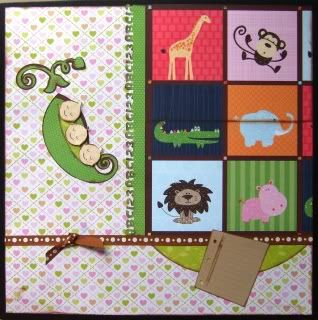
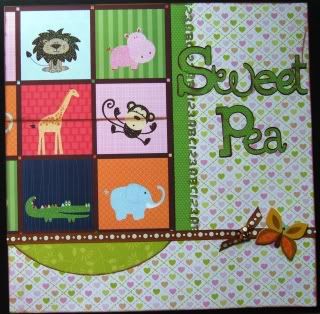
Sweet Pea


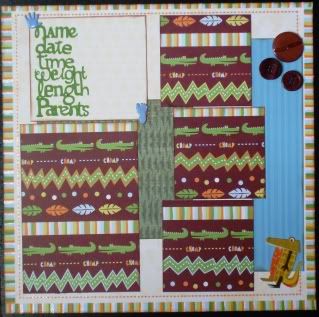
Another set of pages for my cousin's baby book.

This was originally a one page layout but I altered it to fit my needs.

sketch - scrapsketch weekly challenge
paper - DCWV "spring stack" and "safari kids"
carts - george, locker talk and new arrival
punck - ek "abc"


Today's Scal Tutorial

Today's tutorial is a secret! Want to know? You have to go here to find out:

Pieces of Paper Forum

Look under Scal and Inkscape Tutorials. It's the fourth one!

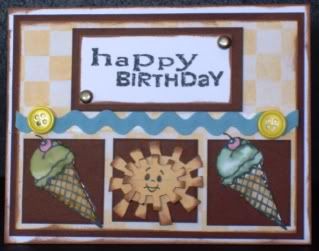
Happy Birthday

I managed to put three challenges into one card! I'm so proud of myself.

Challenge #1: Peachy Keen
This challenge was to use the following sketch:


Challenge #2: Bitten By The Bug
This challenge was to use a summer theme, a yellow button and one cricut cut.

Challenge #3: Chirper Challenge
This challenge was to use brown, zig-zags and brads.


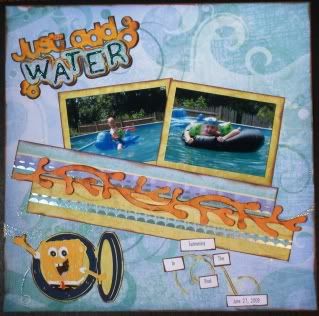
Just Add Water


I finally made a page for myself! It had been way too long.

sketch - scrapsketch #100
paper - K&Co. Happy Trails and scraps
carts - spongebob
font - scrap Katie


Wednesday, July 1, 2009

Scal Tutorial Part #3

Making Your Own Cut File Using Inkscape

Step 1: Find a coloring page online that you like. I will be using the cherry/cherries from this page for this demonstration. http://www.coloring.ws/fruit2.htm

~ Once you find your picture, right click on the picture and choose "save image as". I save mine to my desktop so I know where to find them.
~ Open your picture and crop it as necessary. The cherries didn't need any cropping.

Step 2: Open inkscape.

Step 3: Click on file, import and then choose your picture.

Step 4: Make sure that you have highlighted your image. There will be a black box around it. Click on path, trace bipmat. When the trace bitmap box opens, I change the brightness cutoff to .6 and the edge detection to 1 before I click on ok. Close this box. If you do not get a good trace, you can go back and adjust the cutoff and edge detection until you do.

step 5: You now have two images on top of each other. Highlight the top image and move it to the side. Click on view, display mode and outline. This will give you an image with a red X through it and an outlined image. Delete the image with the red X.

Step 6: On your tool bar, there are three magnifine glasses. If you click on the middle one, it will blow up your image to fill the screen. I find this helpful with the upcoming steps. The magnify glass on the right will revert back to the view that you have now.

Step 7: Click shift + control + k. This will separate each piece of your image. You should now see black boxes around each piece of the cherries.

Step 8: I like to combine all my like colors into sections. I do this by clicking on one round piece of the cherry. While holding down on the shift key, I click on the other round piece of cherry. This should highlight both of the "red" cherry pieces. To combine them press control k while they are both highlighted. Now you should have one black box around both items.

~ Now if you move these items they should move together.
~ Continue to do this to all the pieces that you want to cut together in like color groups. I didn't have any others for this image.

Step 9: I go back to the full page view. I click on each piece of my file and place it in it's own place on the page. When you do this, it is important to watch where you place your items. You don't want them too close together or they will be difficult to cut later.


Step 10: It's time to save your file. Make sure when you save it that you can find it later.

Step 11: You can close inkscape. We are done with it.

Step 12: Open SCAL.

Step 13: Click on file, import and then choose your file.

Step 14: You can size your file by either using the properties box or by using the arrows on the box that surrounds your image.


Step 15: It's time to load your paper and cut out your image. If you need your image larger than will fit on your mat that's ok. Just pick one piece of your image (the base) and make it the size you need. The other pieces will hang off of the cutting mat. Cut the base and then move your image until another piece is on the cutting mat. Do this until you have cut out all of your pieces. This is time consuming but allows you to cut larger items with layers.

I hope you enjoyed this tutorial. If you have any questions, feel free to ask.

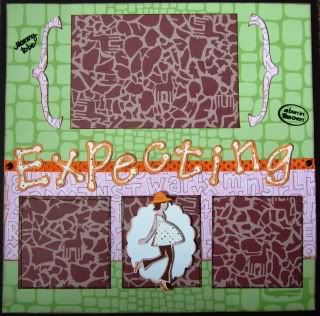
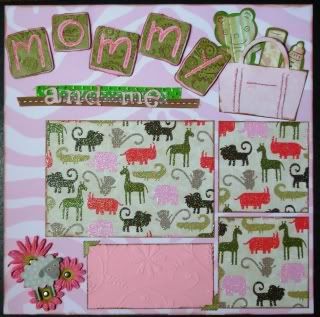
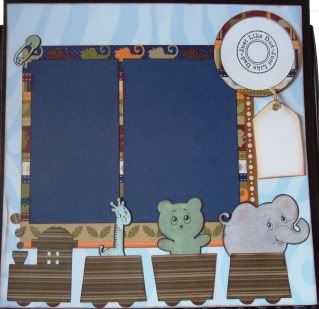
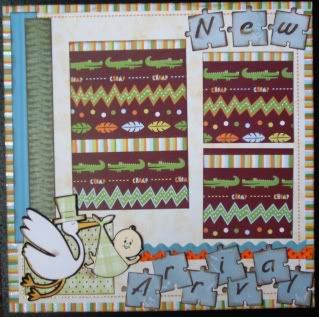
Baby book for my cousin

My cousin is having a baby in August. Her baby shower is while I'm at Disney so I won't be able to attend. I'm making a baby book for her that I will send to the shower with my aunt.


Expecting:
sketch - scrapsketch #104
paper - Safari Kids Stack
carts - george and new arrival


Mommy and Me:
sketch - scrapsketch #96
paper - Safari Kids Stack
carts - george, new arrival and printing 101
cuttlebug folder - perfect paisley


Just Like Dad:
sketch - scrapsketch #104
paper - Safari Kids Stack
carts - new arrival and george


New Arrival:
sketch - pagemaps "June"
paper - Safari Kids Stack
carts - new arrival, george
cuttlebug folders - swiss dots